How to connect aMESM to Metrel installation test instruments
First use
Pair the Metrel installation test instrument with your Android device
Turn on the Metrel installation test instrument
Go to Settings on your Android
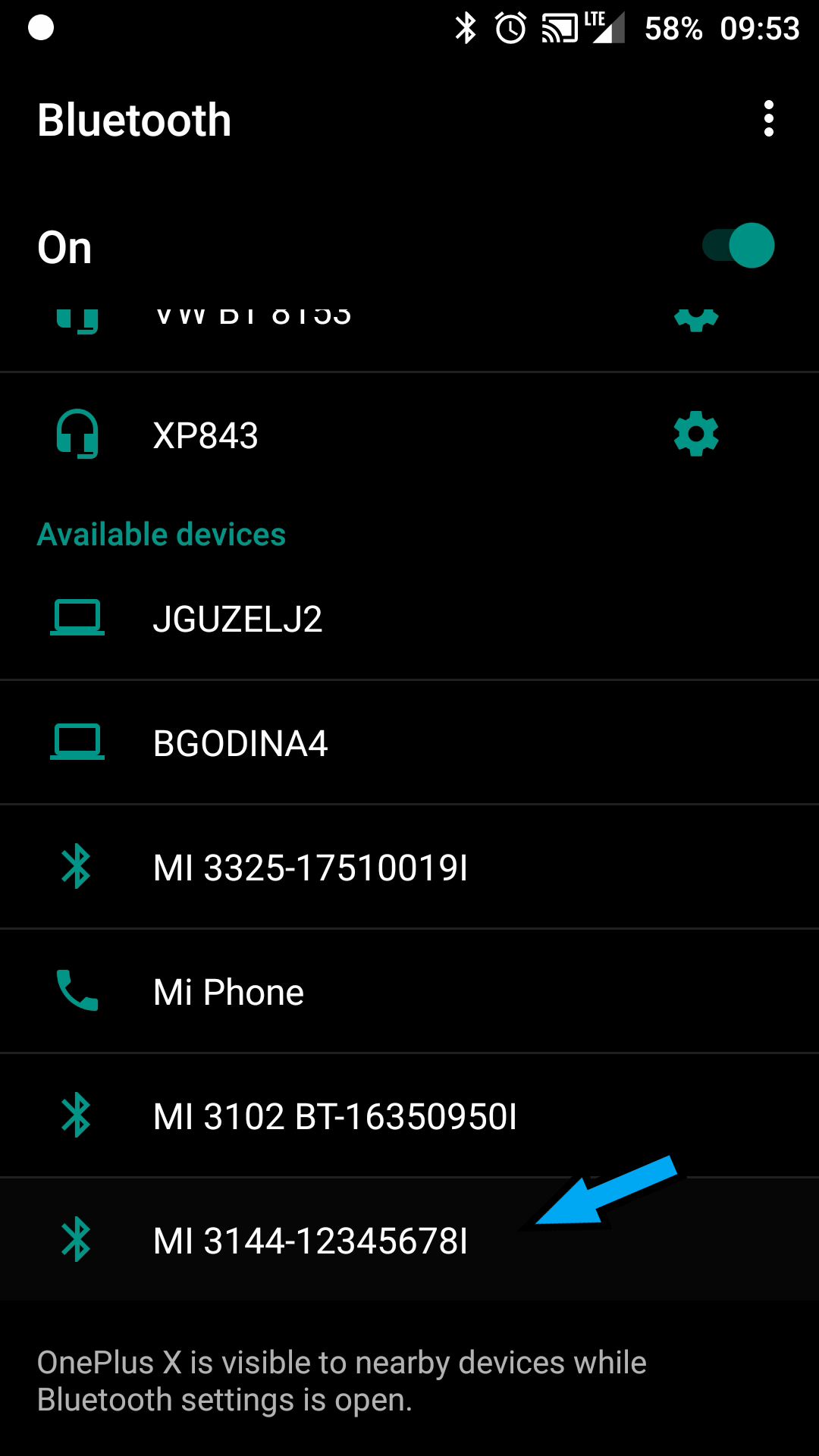
Scan for Bluetooth available devices on your Android device
Select the correct instrument for pairing
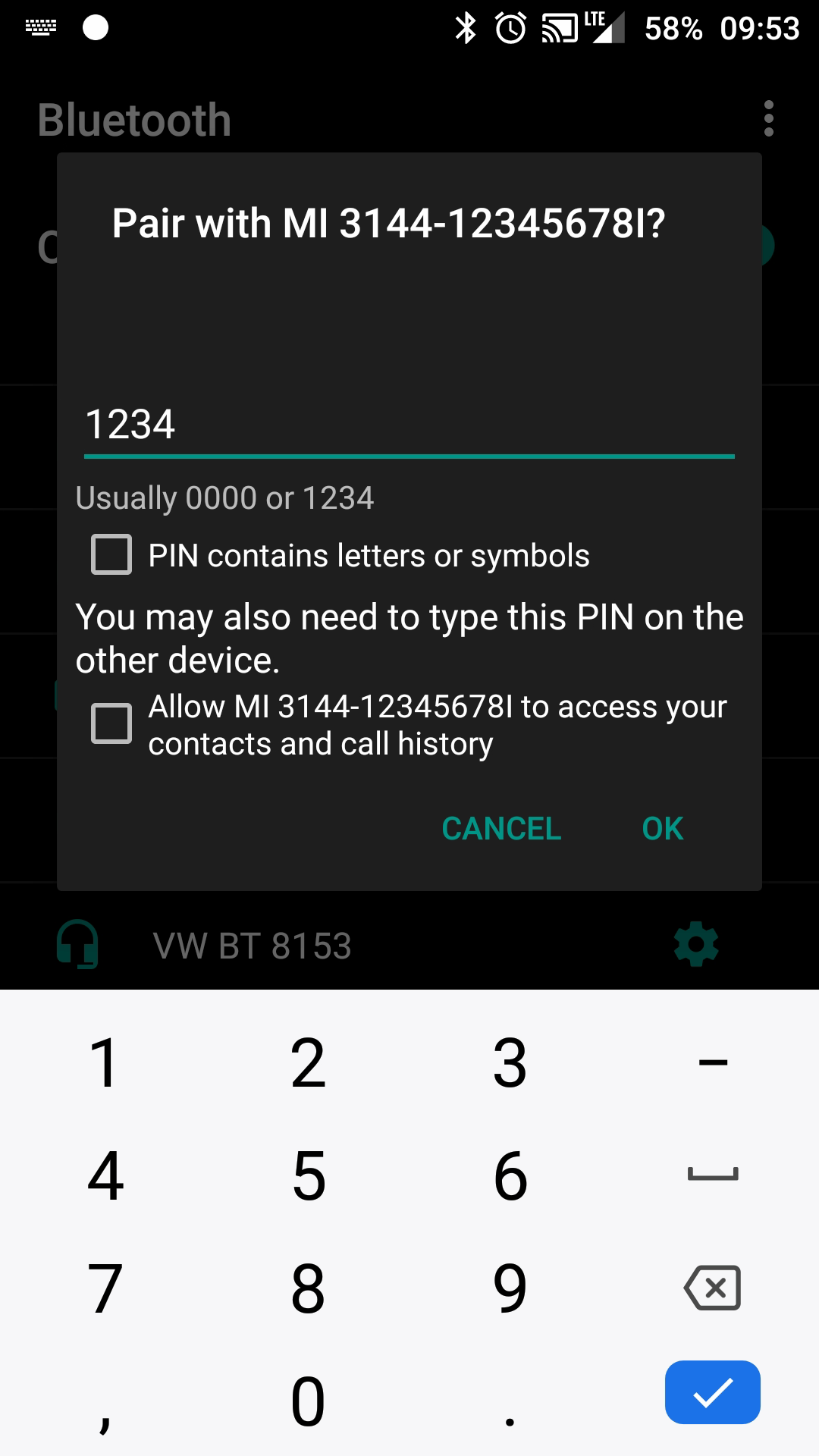
Use the default PIN 1234 to pair
Enter license key
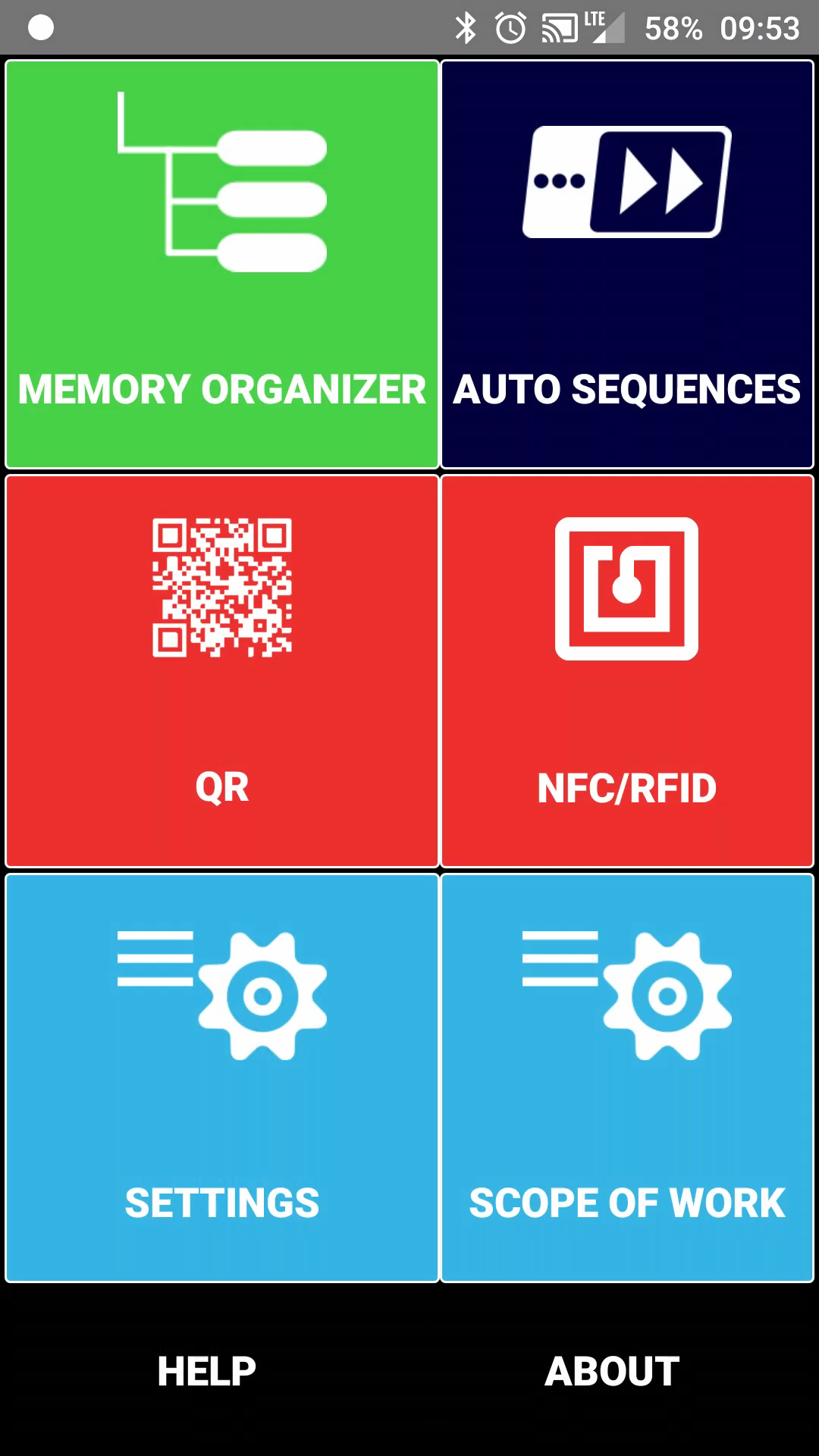
Open aMESM
Select "Settings"
Select "Device Activation"
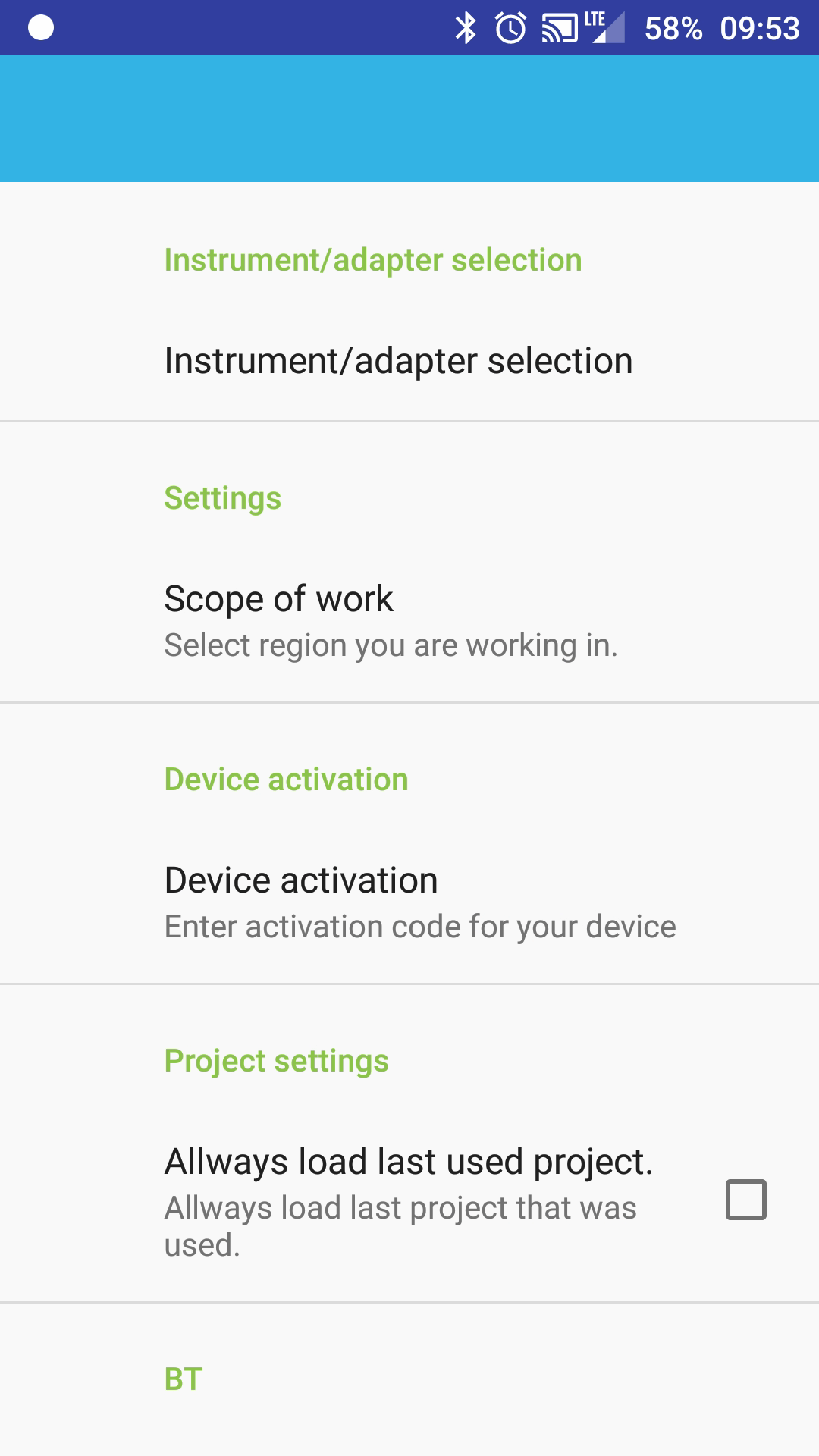
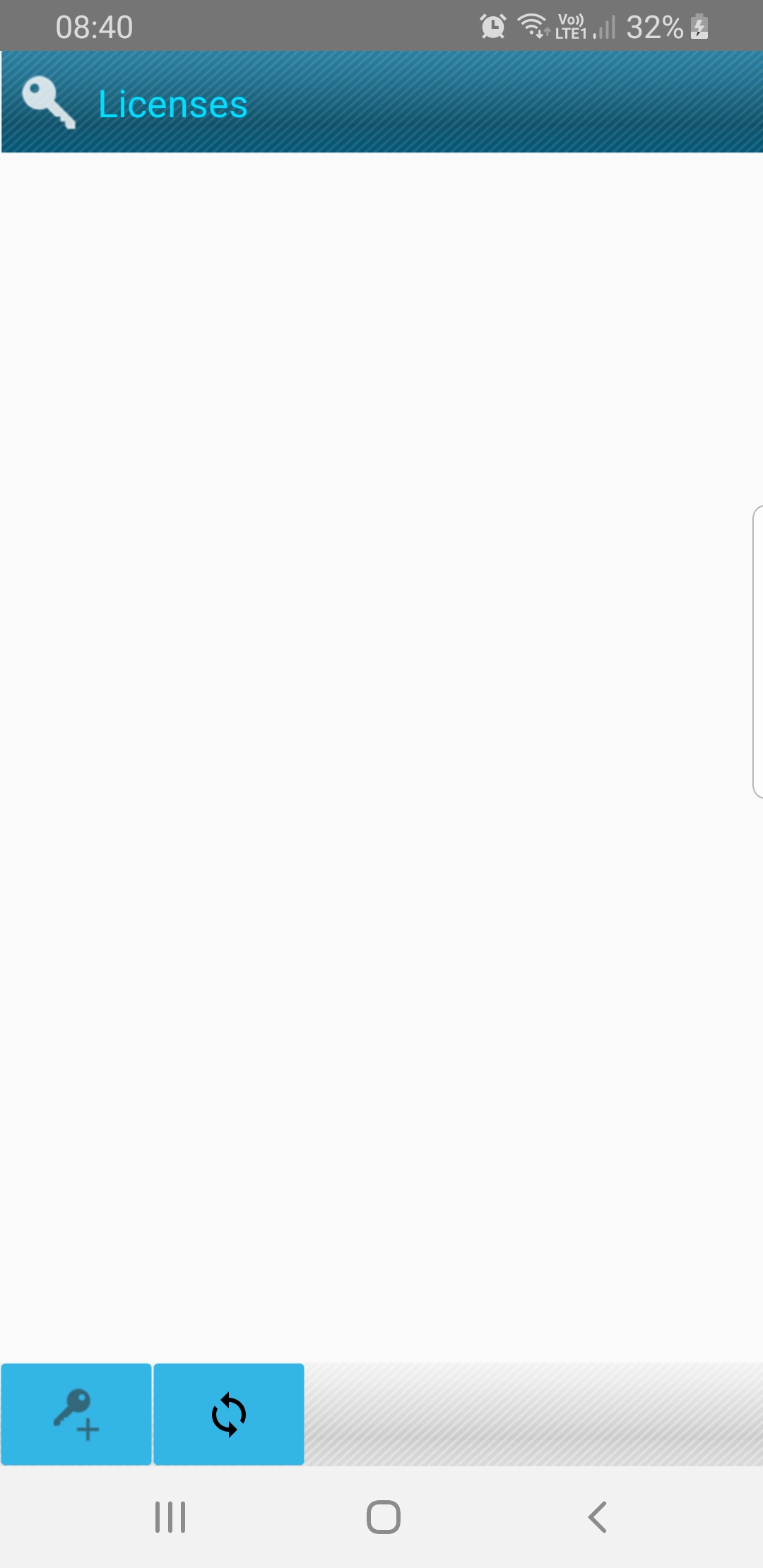
4. Click on the key button
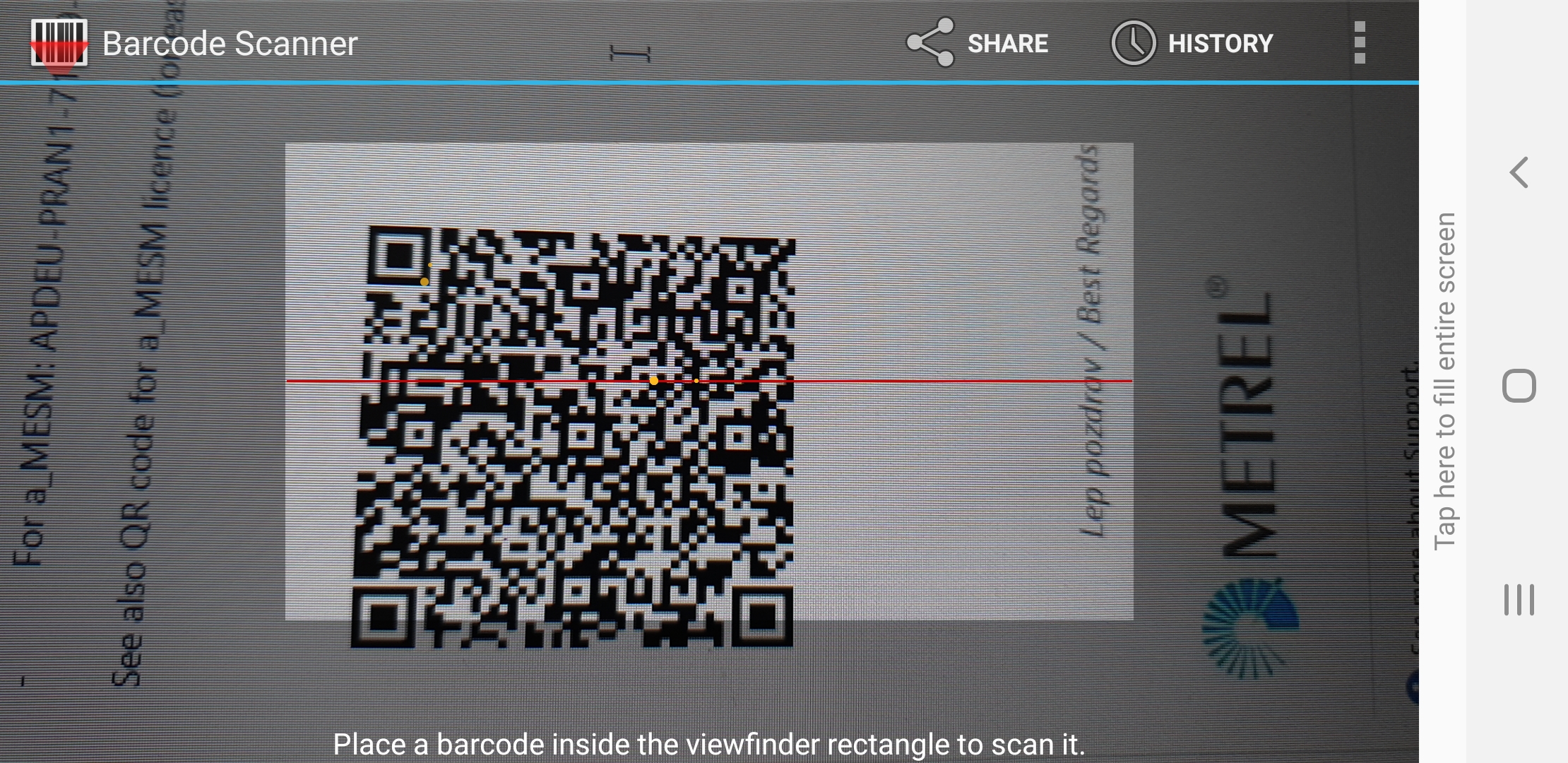
5, Select the Barcode button and scan your license a.k.a QR code in the email received message/printed page or enter manually the license
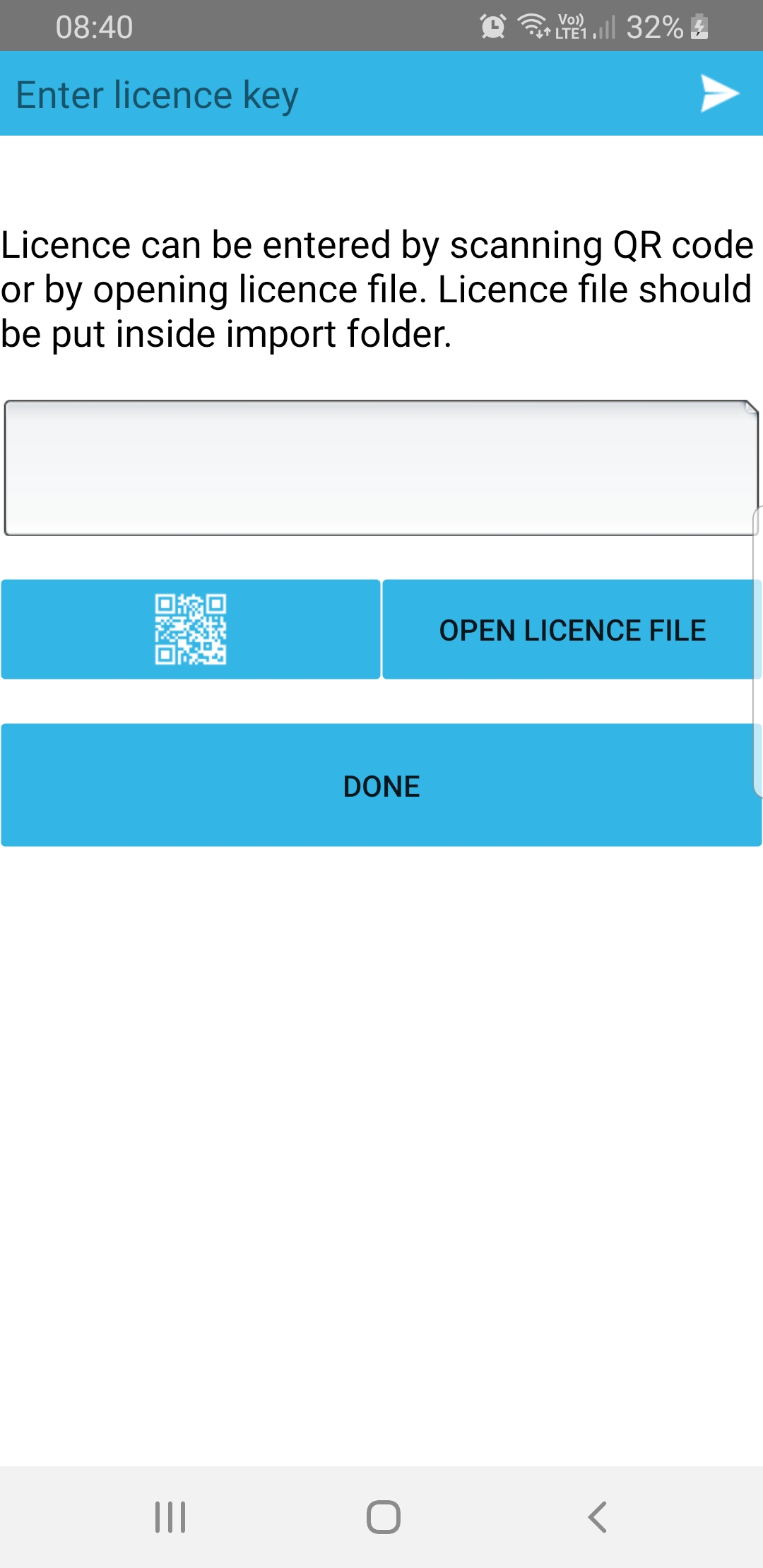
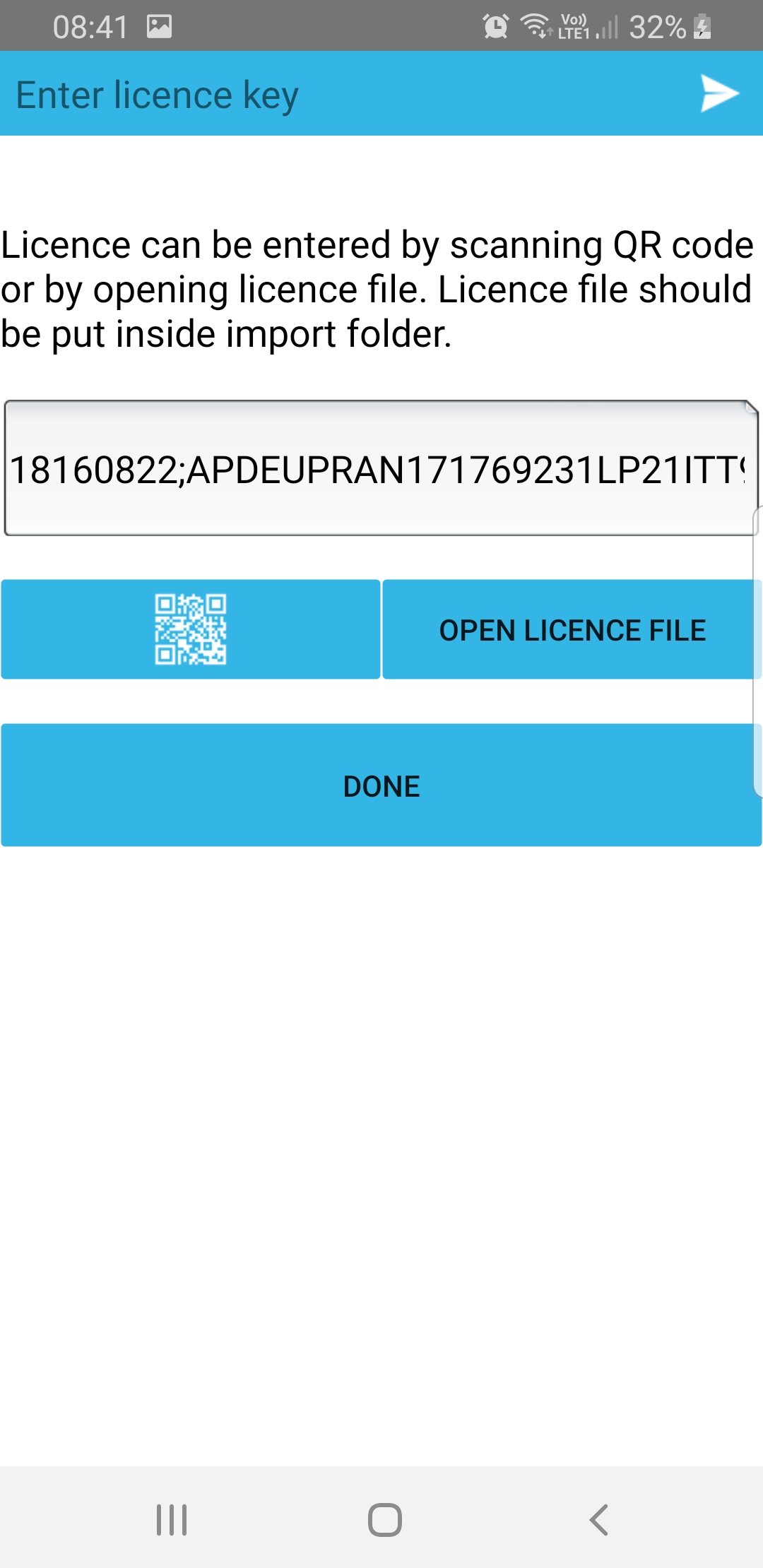
Click "Done"
You should now be able to connect your Metrel installation tester with the Android App aMESM.
aMESM initial settings
Open aMESM
Select "Settings"
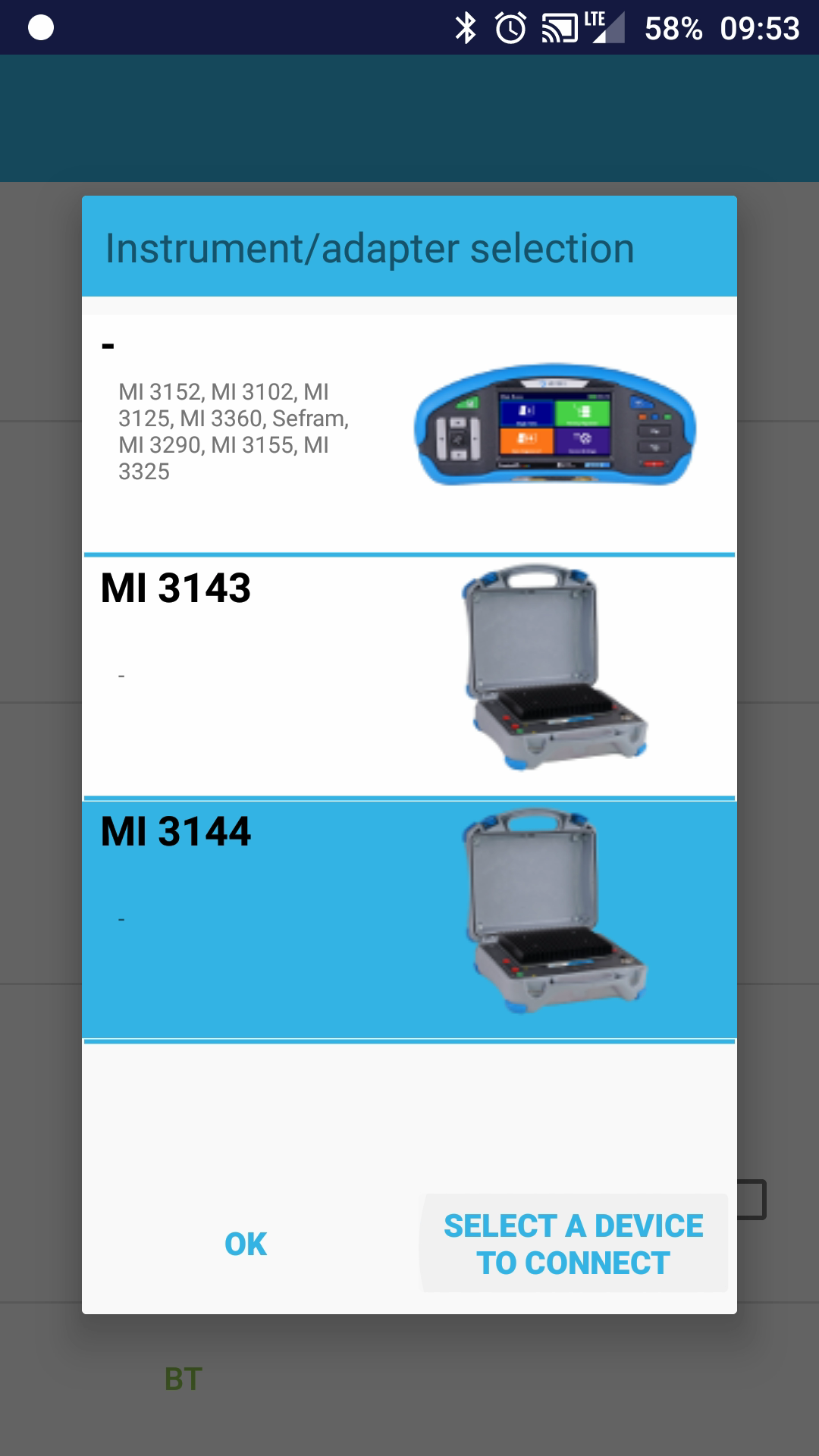
Select "Instrument/adapter selection"
Choose appropriate installation tester
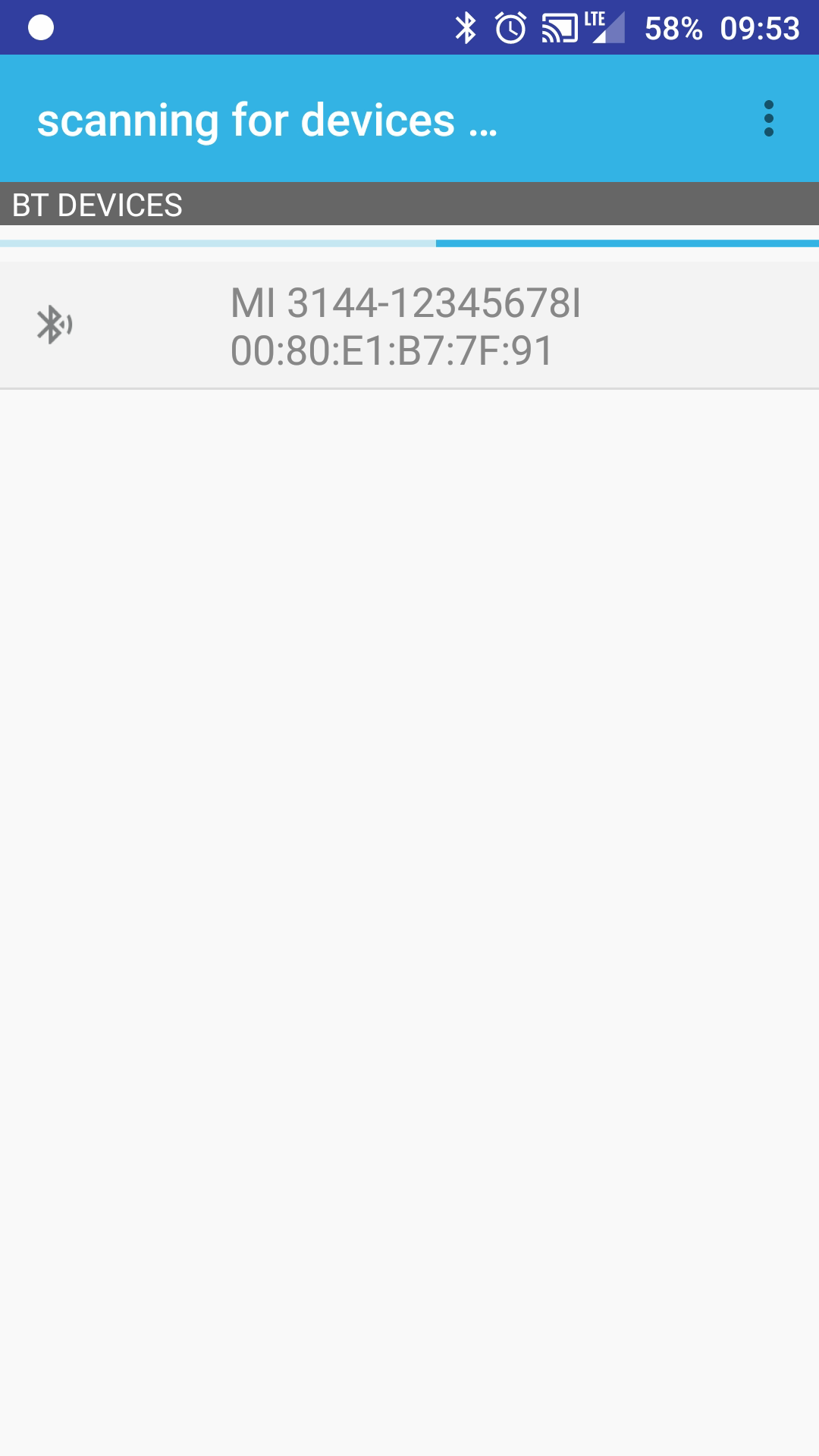
Click on "Select a device to connect" and choose the one with your serial number
Click "OK"
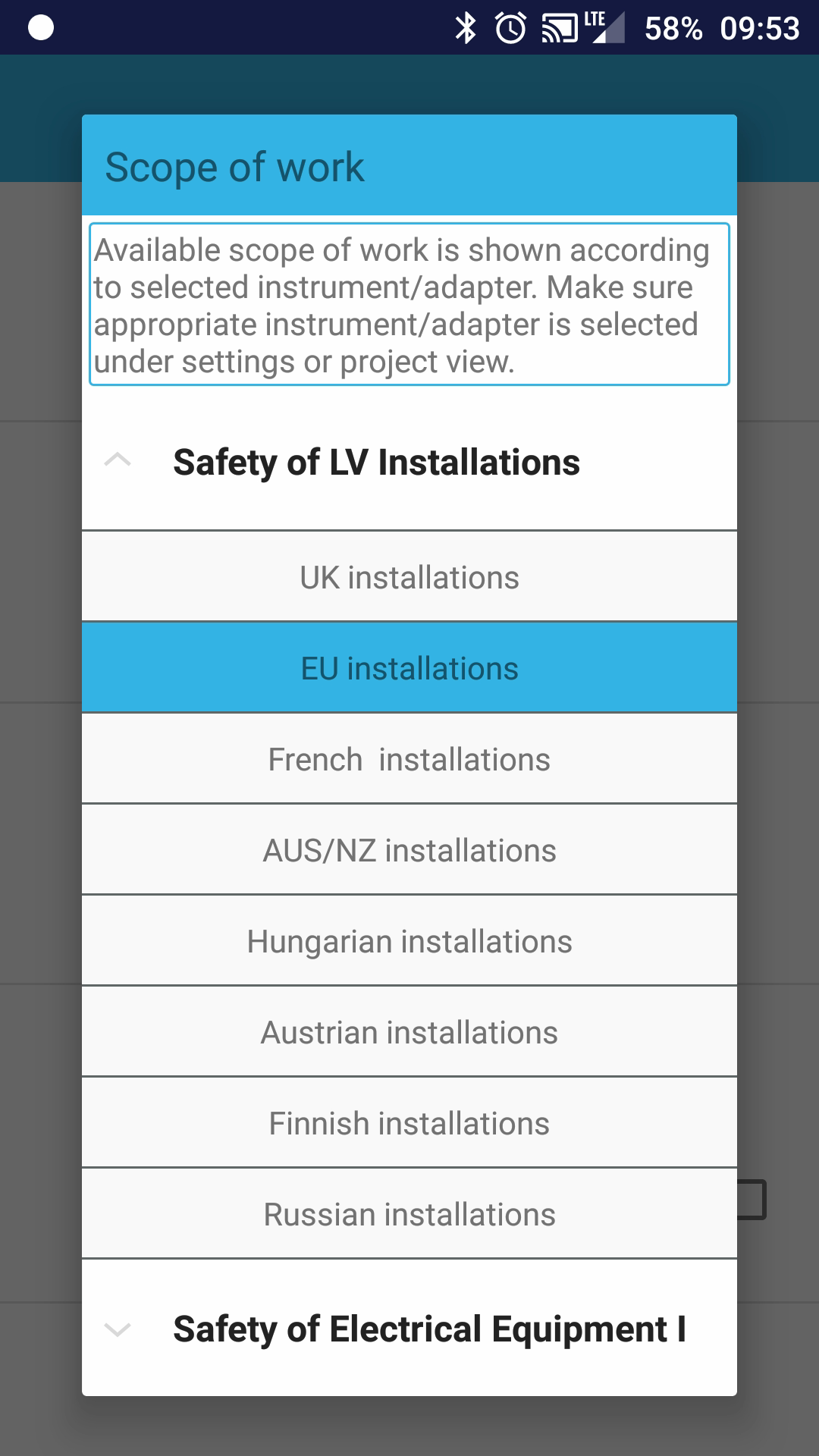
Select "Scope of work"
Select your workscope
Example: "Safety of LV installations" → EU installations
Go back